Complete your race result and understand the report
A completed race can combine your finish result, a matching run, recorded conditions and the training leading up to it. Check what the app already has, fill the gaps and review every automatic suggestion before you accept it.
Open the completed race
- Choose Races.
- Find the event under Past races.
- Open Overview.
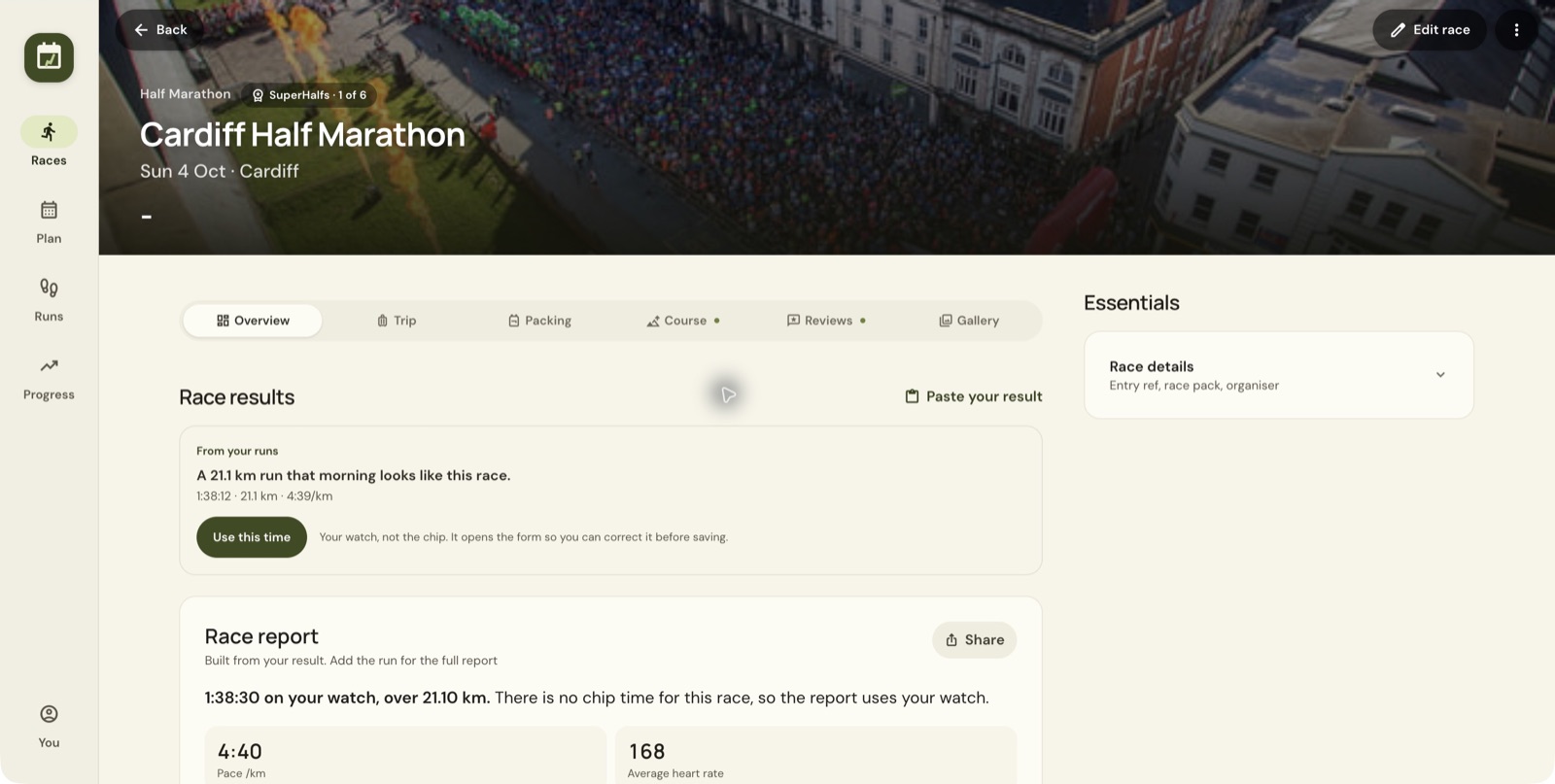
If a run on the race morning looks like the event, From your runs offers Use this time. The page says this is the watch time, not the chip time, and opens a form where you can correct it before saving.
In this example the suggestion is 1:38:12, while the existing report uses 1:38:30. The suggested figure does not replace the saved result unless you save it.
Review the post-race form
Use Edit race → Post-race results, or the result action on Overview. If a shortcut opens General info, select Post-race results yourself.
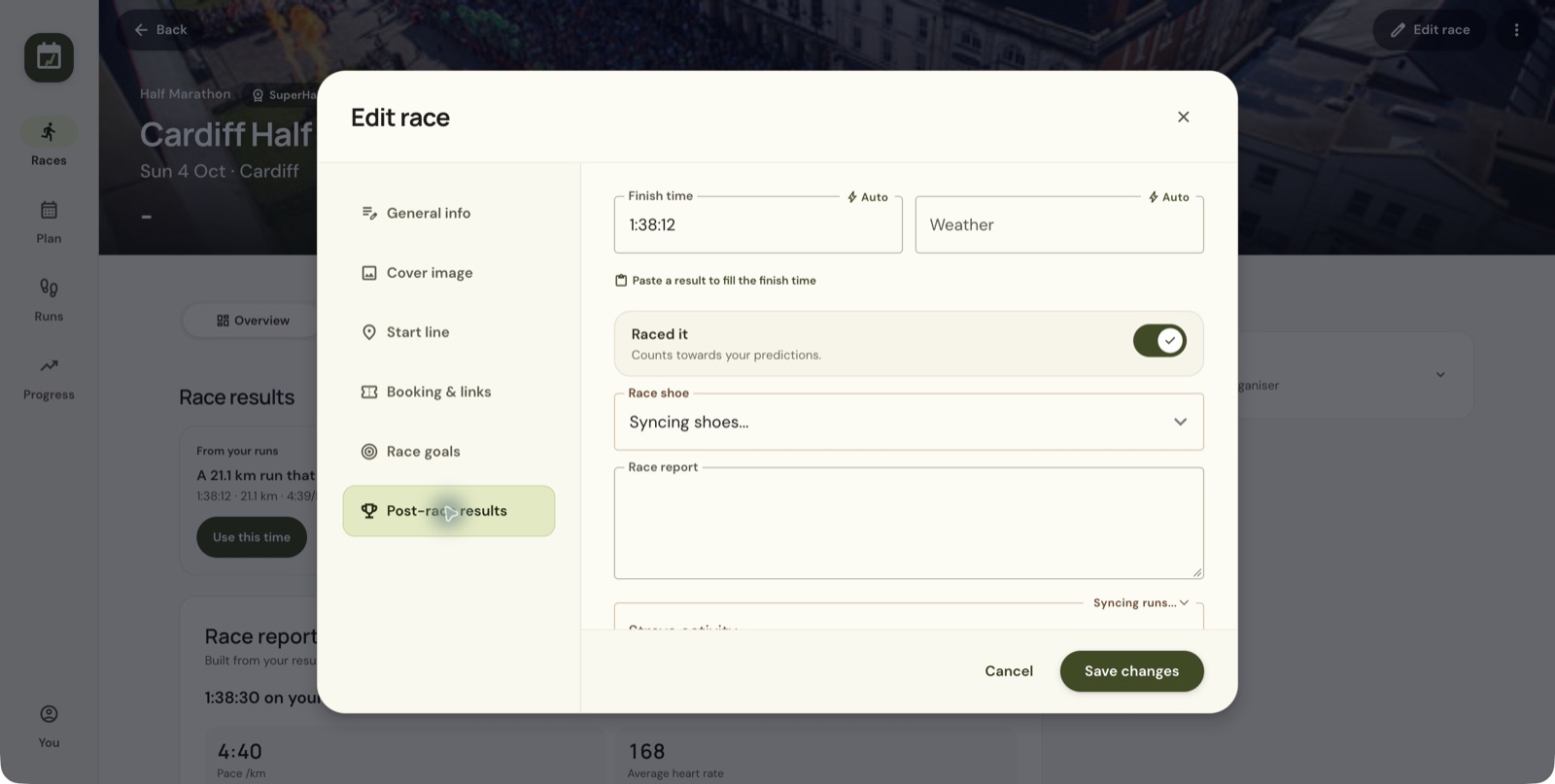
Before Save changes, check each field in this table.
| Field or control | What to check |
|---|---|
| Finish time | The time you intend to record, checked against your official result or recording |
| Auto | Review any filled value, which may not be the official chip time |
| Paste a result | An alternative action for filling the finish time from result text |
| Weather | The conditions you want recorded for this race |
| Raced it | Whether this performance should count towards predictions |
| Race shoe | The pair used for the event, when available |
| Your notes | Your own account of the day |
| Strava activity | The correct activity ID, link or embed code, or a recent-run selection |
If the recent-run list doesn't load, check that Strava is connected. A report you already have stays in place either way.
Link the correct run
Use Add the run in Your day, or the Strava activity controls in the editor. Match the event date and activity, then review before saving. Linking the recording adds detail that a finish time alone cannot.
If the report says Add the run for the full report, some data is missing. View run opens the run detail, but some report features may still lack information.
Understand the generated report
The report states which time it uses. Here it says no chip time is recorded, so it uses the watch time. The profile setting under You → Profile → Race times also controls whether reports use chip time or the watch, with a watch fallback where no chip time exists.
Expand the report sections to see more.
- Effort shows the heart-rate context available for the race.
- Conditions and course shows weather and terrain information.
- The 16 weeks before summarises the training before the race.
- For next time lists observations drawn from that evidence.
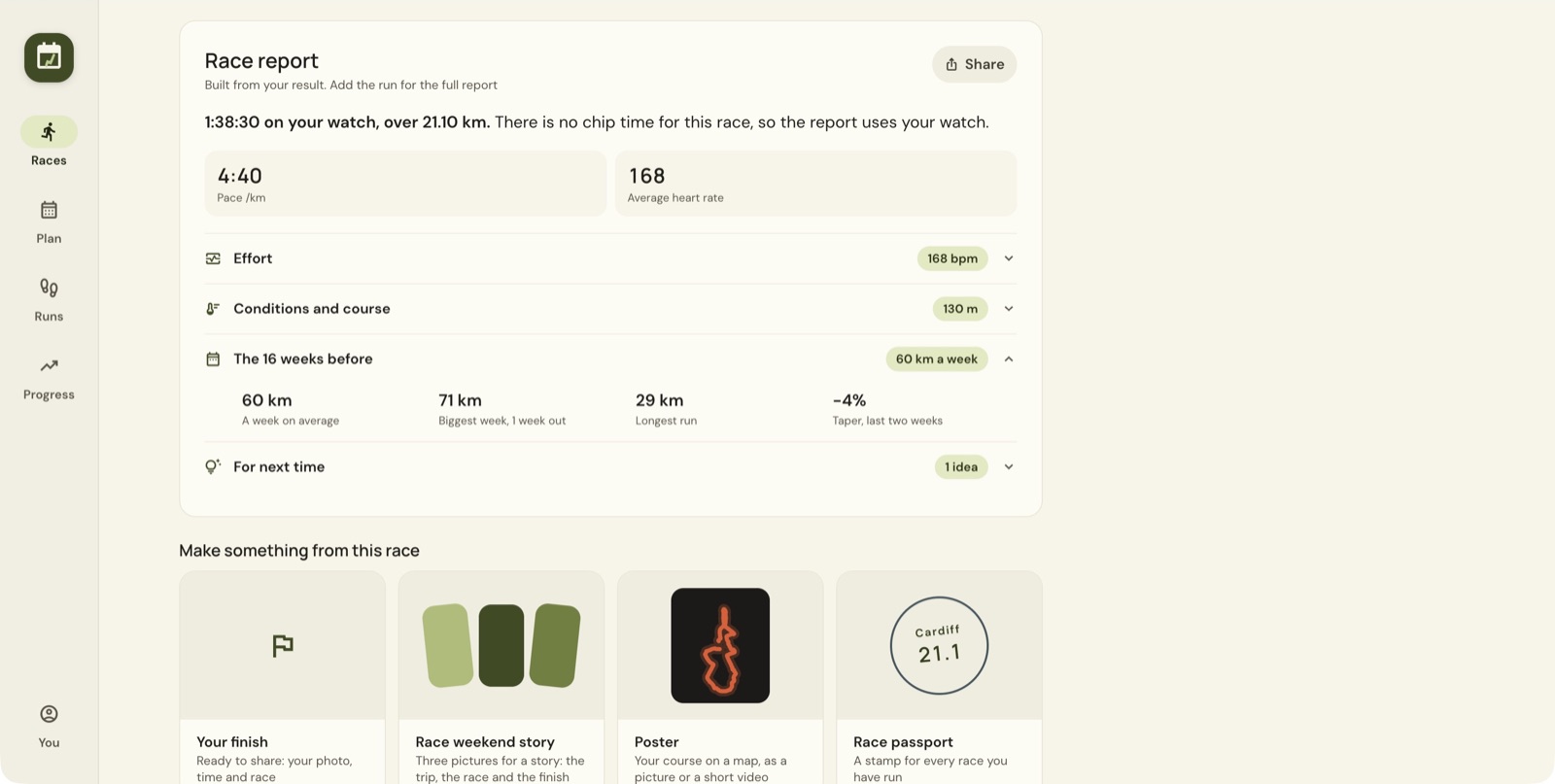
These sections explain the recorded build-up. They do not prove that one training choice caused the result, and they are not a full plan for the next race.
Add context the recording cannot supply
Under Your day, add personal notes, a race photo and the shoe used. Fill from the weather archive offers historical conditions. Review the source and values before relying on them.
The Race report is written by the app from your result and run. Your notes keeps your own account of the day.
Missing splits, an unlinked activity or an absent chip time limit the report. Leave those gaps showing and don't invent a result.
Still stuck? Email contact@intherunning.app and say which page you were on.