Save and share your race memories
Keep photos and personal notes with the event, then use the race's sharing editor to create a finish picture or a story about the weekend. You can inspect and edit the pictures before deciding where to share them.
Start from the completed race
Open Races → your completed race → Overview. Under Your day, use Add a photo for a race photo and Write your notes for your own account of the day. Record details such as how the day felt or what you want to remember. Pace data cannot give those back later.
The photographer link, when present, opens the event's external photo site. Finding a photo there does not add it to your own race record.
Preview your finish picture
In Make something from this race, choose Your finish.
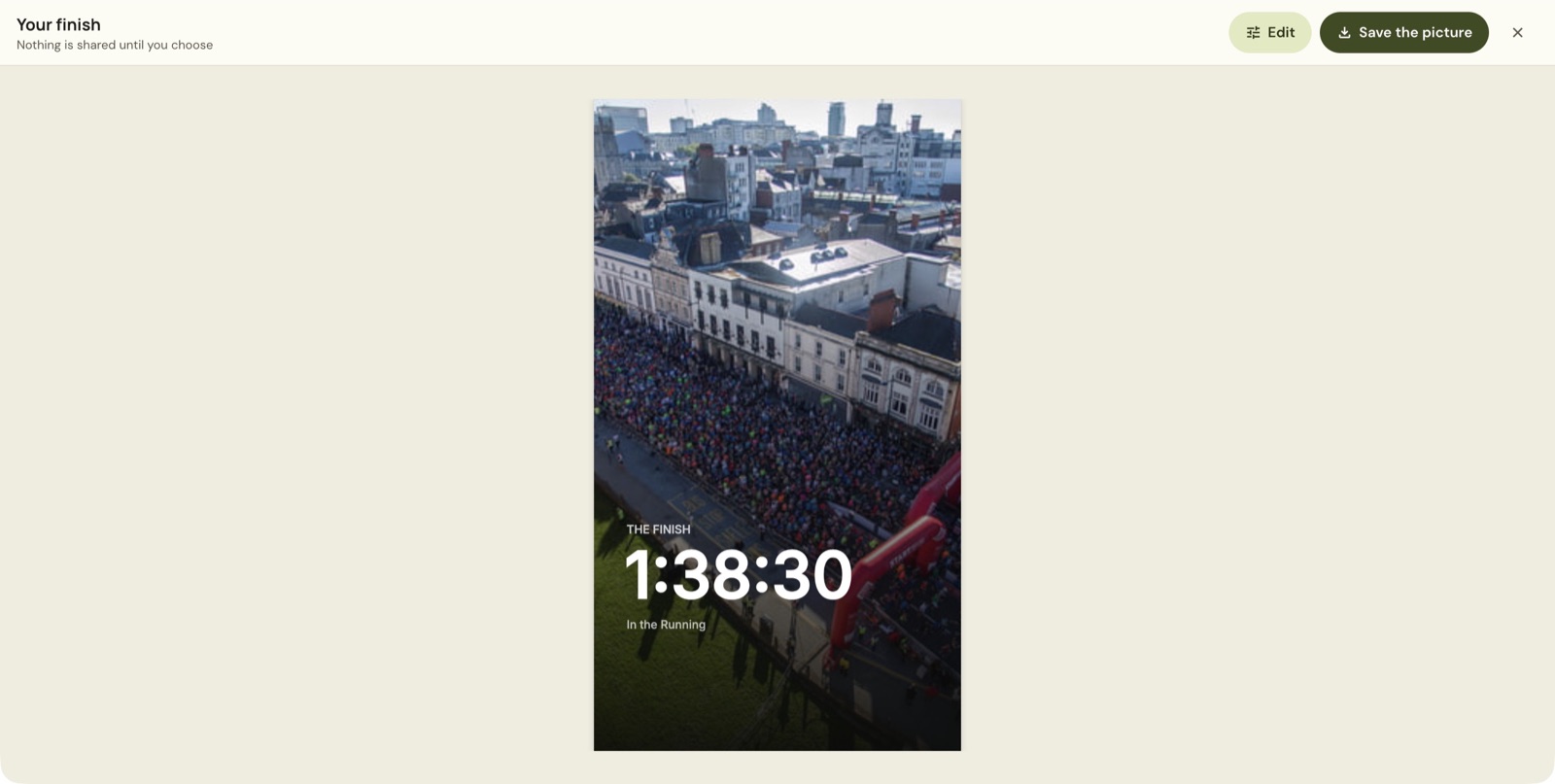
Check the displayed time before saving. The report in this account says it uses watch time, while the sharing editor labels a time category as Chip time. Compare any mismatch with the saved race result before you publish the picture. The Chip time label in the editor does not mean an official chip result exists.
Choose Edit to customise the picture, or Save the picture when the preview is ready. The screen says nothing is shared until you choose. Saving a picture does not publish it to a social service.
Build a story from the weekend
Choose Race weekend story on the race Overview, or use Edit from the finish preview to enter the picture editor.
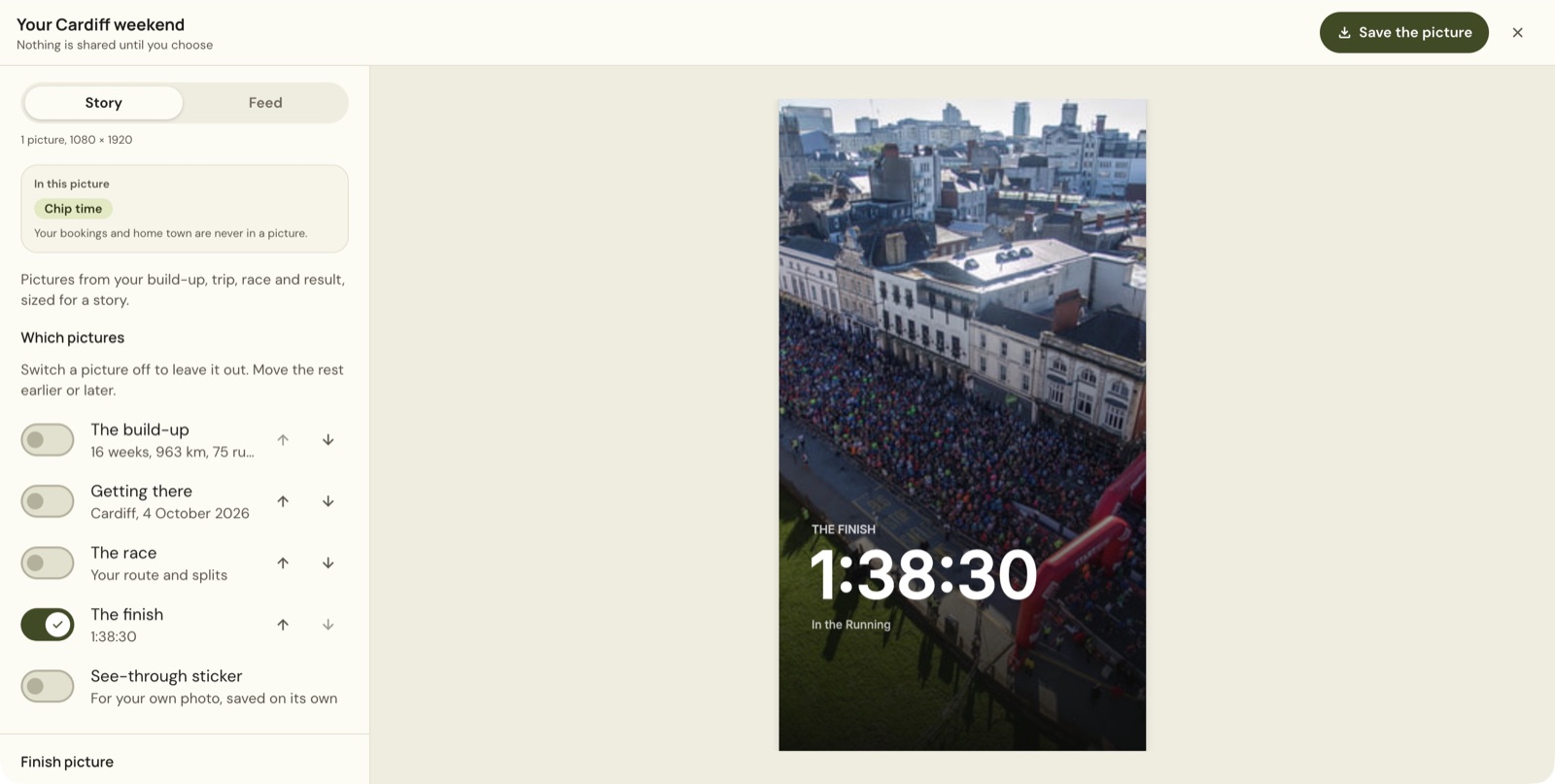
Under Which pictures, switch the parts you want on or off:
| Picture | Content described by the editor |
|---|---|
| The build-up | The training leading into the event |
| Getting there | The destination and race date |
| The race | The route and splits, when available |
| The finish | The finish result |
| See-through sticker | An overlay for your own photo, saved separately in Story mode |
Use the earlier/later controls to change the order. The number of pictures changes with your selection, so a weekend story need not have exactly three.
Use Add your finish photo to personalise the finish picture. Review the preview after adding a photo so text and result information remain readable. The pictures here use the race's own image, not a personal photo.
Choose Story or Feed
The Story format is 1080 × 1920, while Feed is 1080 × 1350.
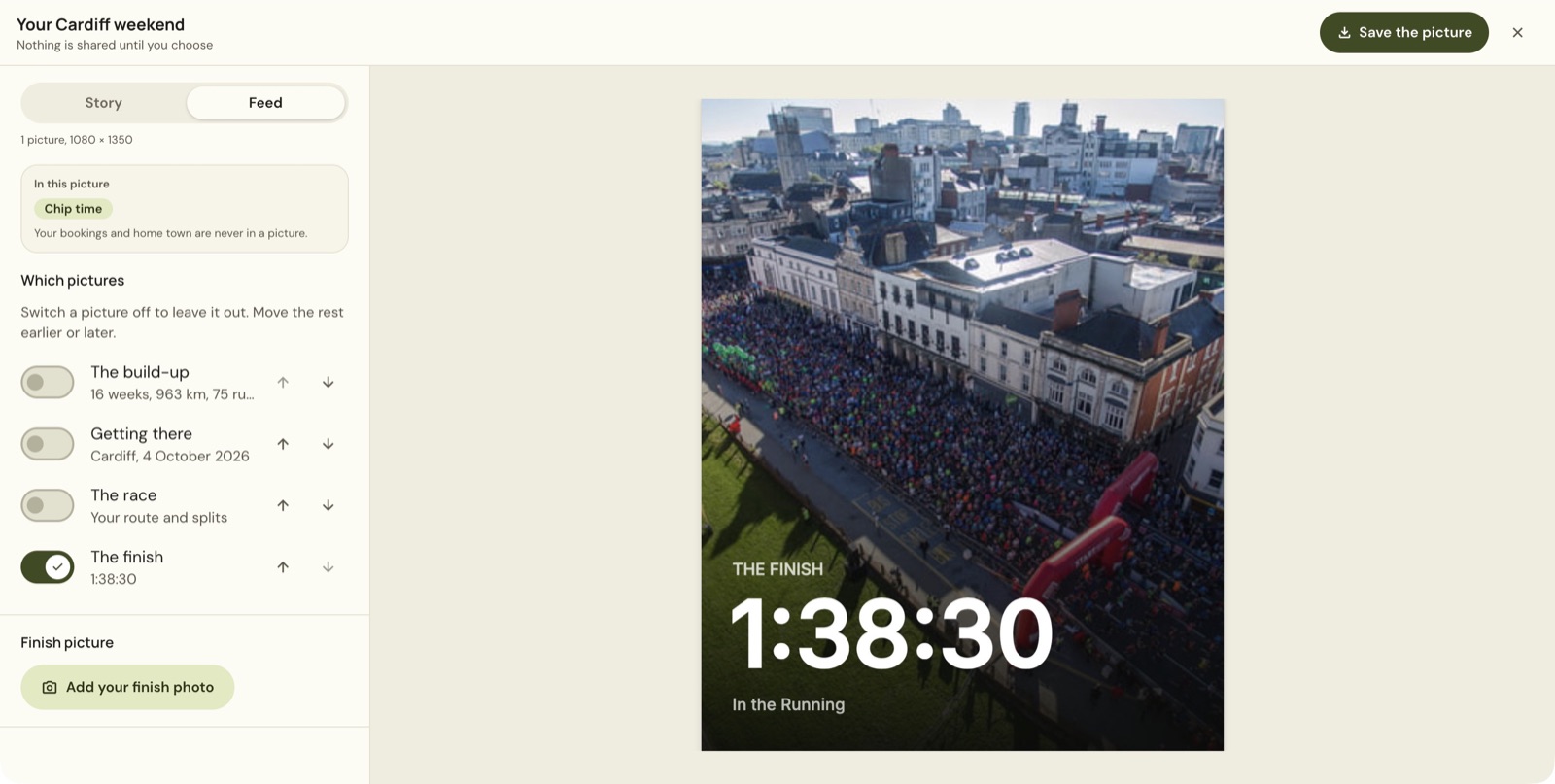
Choose the intended format before reviewing the final picture. The editor says bookings and home town are excluded. Still check the complete preview and any photo you add before sharing.
In Story mode, Watch the video and Save the video are available. The description says the video is ten seconds or less, with a race line that slows where you did and build-up runs shown in turn. How much it shows depends on the route, splits and training the race has.
Keep more photos in Gallery
Open the race's Gallery tab. Choose Add photos to add images to the race collection. The page also offers Open photo site where an external photographer is configured.
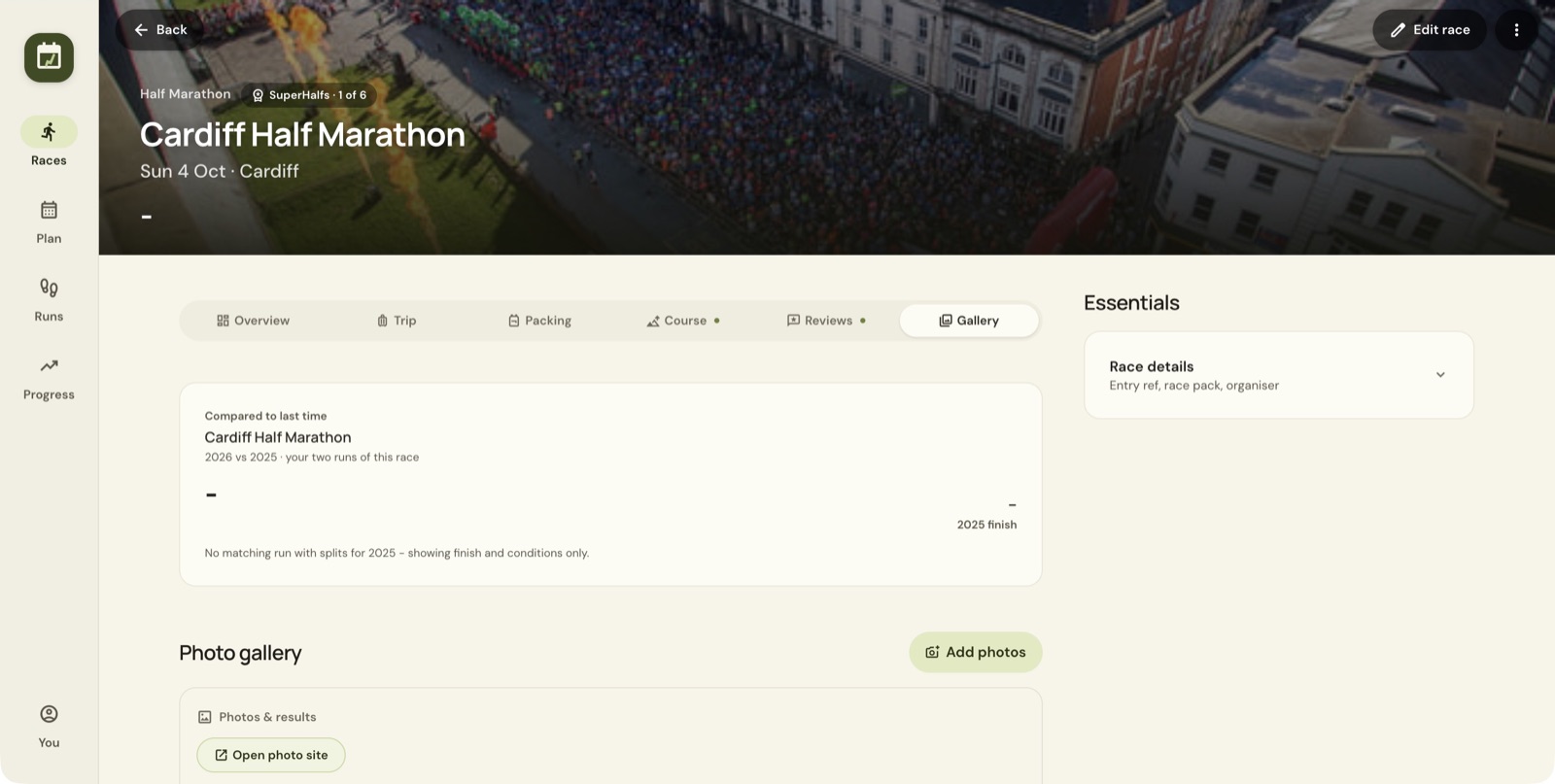
Keep medal, bib and weekend photographs with the event so they remain easy to find. The screenshot shows the empty gallery and its controls. No photo was uploaded or shared to make it.
Before you share
Check the result, date, image, picture order and chosen format. Leave out story sections that lack the data you want to show. Save the finished output, review it, and then choose its destination yourself.
Still stuck? Email contact@intherunning.app and say which page you were on.